How do I create a Padelio community?
Last updated 2026-05-10
From the Create tab (mobile) or app.padelio.org/create (web), choose
Community, give it a name, decide public vs private, and choose whether
new joiners need approval. Free accounts get 1 community with a 15-member cap;
Pro removes the cap.
What a community is for
Use a community when you have a broad group that:
- Doesn't fit a crew's small-paid-group model (a club's whole membership, all padel players in your city).
- Wants a shared events feed without the crew's branding-and-paid-plan structure.
- Has loose membership — people come and go.
Communities sit alongside crews in Padelio: a single user can be a member of many communities and many crews. Tournaments and leagues can be linked to either or both, and they show in the linked group's events feed.
Step by step
Step 1 — Open Create → Community
From the bottom navigation, tap the Create tab (the centre tab with the + icon), then Community.
Step 2 — Name and describe
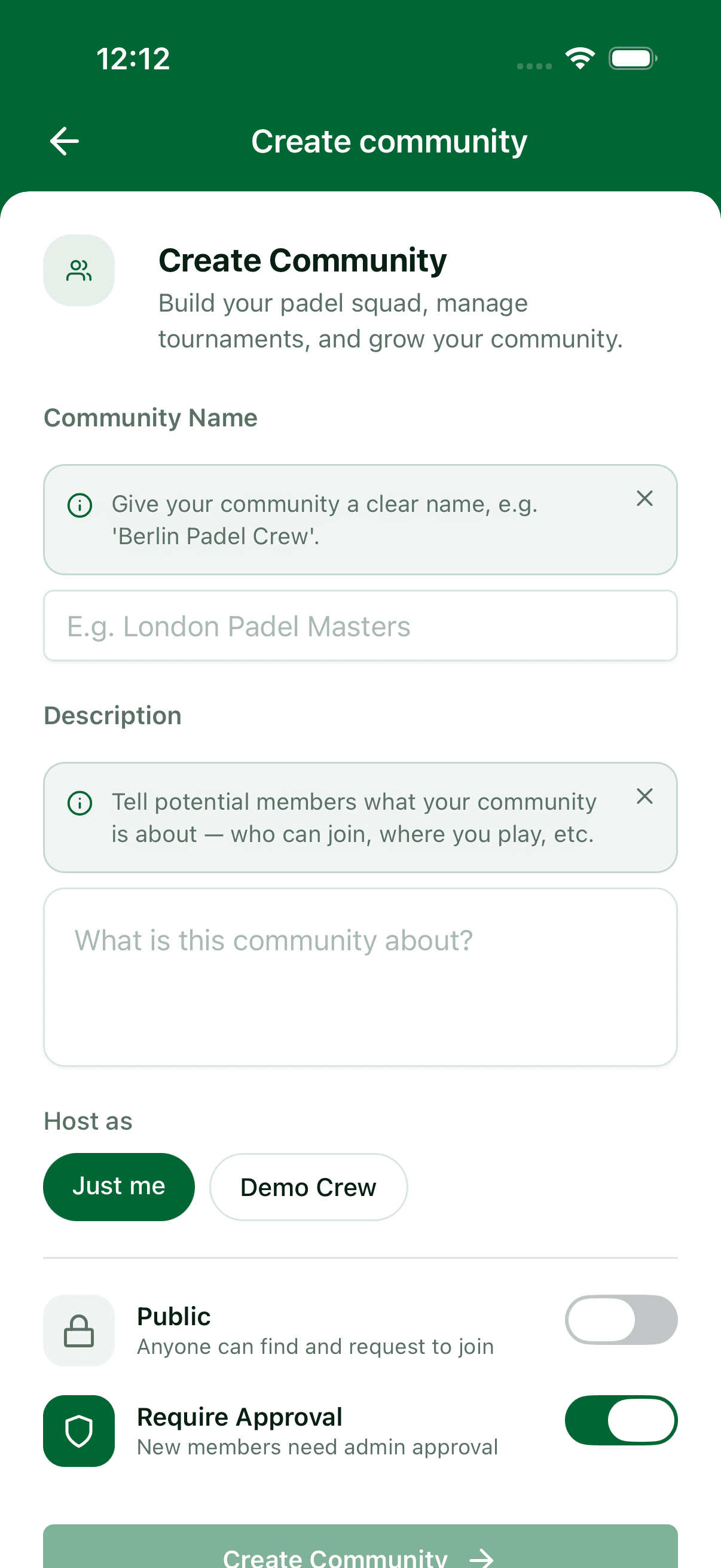
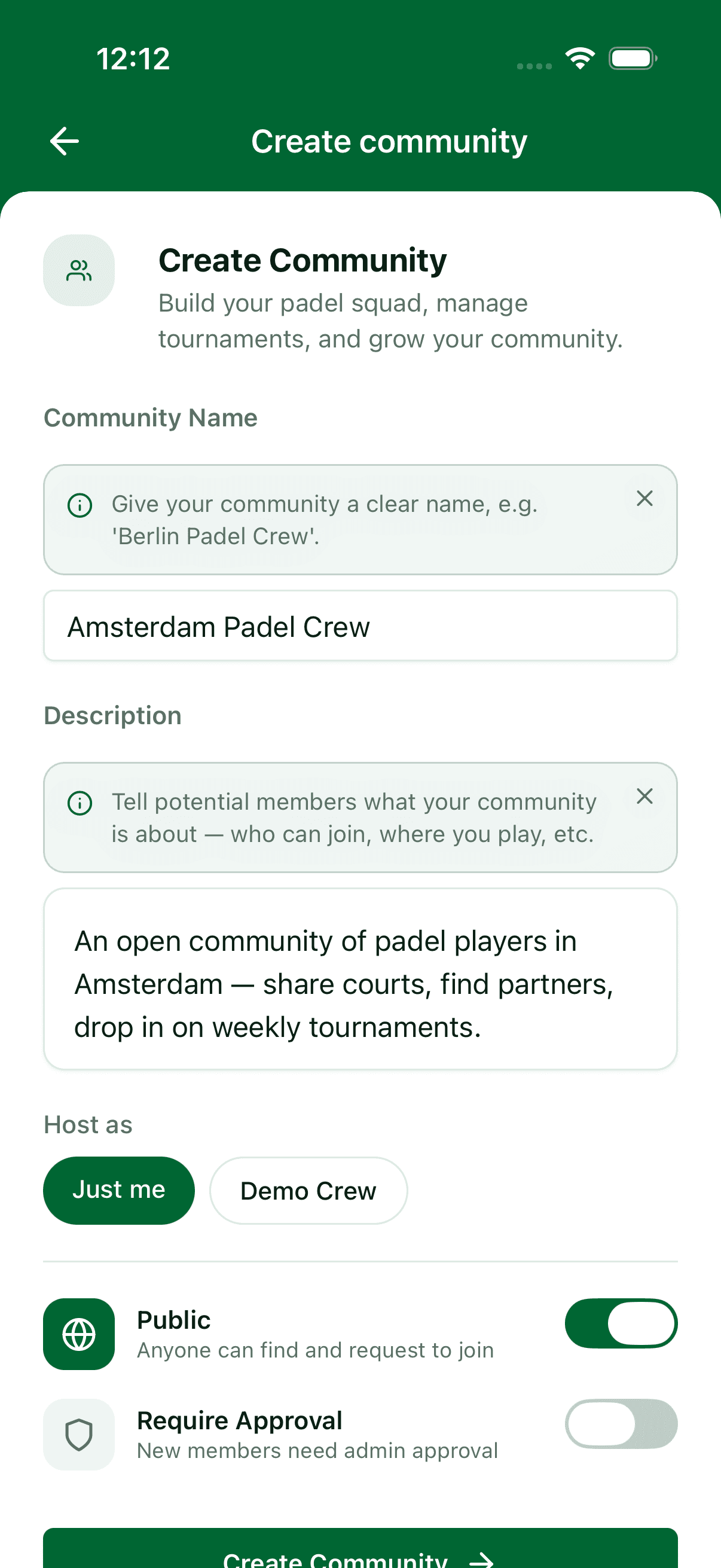
Give it a name (e.g., "Lisbon Padel Friends", "Padel Club Munich"). Add a short description so new joiners know what they're joining. Optionally set a city/location — Padelio geocodes it for the map.
Step 3 — Cover image and logo
Optional but recommended — communities with branding feel more inviting. Upload a logo and/or cover image. Both are available on the free tier.
Step 4 — Public or private?
Public (isPublic = true) — discoverable from the Browse tab; the community shows up in search results. Private (isPublic = false) — not listed; new joiners need the invite link or a direct invite to find it.
Step 5 — Require approval?
Independent of public/private: the Require approval toggle (default on) controls whether new joiners go into a PENDING queue for the Owner or an Admin to approve. Turn it off if you want auto-approval — anyone who joins is added immediately. Public + auto-approve = open community; Private + require approval = strict gatekeeping.
Step 6 — Create
Tap Create. The community page opens — share the invite link or invite people directly.
After creation
You're the Owner. From the community page you can:
- Invite members (search by name to invite an existing Padelio user, or share the invite link with a referral code).
- Promote members to Admin — admins can approve/reject join requests, invite, and block disruptive users.
- Adjust public/private and approval settings.
- Link tournaments, leagues, and events to the community feed.
See communities/members-and-roles for the role details and inviting flow; communities/settings for the rest.
Where to go next
- Invite people: communities/members-and-roles.
- Tweak settings: communities/settings.
- Want a smaller branded group with a paid plan instead? crews/create.
FAQ
- When should I create a community vs a crew?
- Crew for a small branded group with shared events under a paid plan (3 members on Crew, 10 on Crew Pro). Community for a broader network — a club's full membership, a city's padel scene, friend-of-a-friend groups. Communities can run on the free tier (1 community, 15-member cap) or expand on Pro.
- Can a community contain crews?
- Indirectly. A user can be in many communities and many crews. There's no nesting at the data level, but in practice clubs often run a community for the broad membership and several crews for active sub-groups. A community can also be linked to a host crew via the Community.crewId field, set at creation.
- Can communities be private?
- Yes — toggle `isPublic` off. Private communities aren't listed in the Browse tab; new joiners need an invite (link or direct) to find them. Separate from privacy, the **Require approval** toggle controls whether joiners (even with the link) go into a PENDING queue or are auto-approved.
- Is there a cap on community size?
- Free accounts can own 1 community with up to 15 members. Pro accounts remove both caps — unlimited communities, unlimited members per community.
See something off? Suggest a fix — emails support@padelio.org with the article and a prefilled subject.